Stay connected to your child's learning
The Dr U Education Parent App gives you a live window into your child's academic journey — results, attendance, homework, messages, and more — directly on your phone.
Start
Tap Sign Up
Verify
Use your email code
Finish
Create password
Everything you need, in your pocket
Designed for busy parents who want to stay informed without chasing down updates.
Track Academic Progress
Monitor your child's performance across tests, assignments, and subjects in real time — all in one place.
Real-Time Notifications
Get instant alerts for test results, attendance, homework due dates, and important updates from the centre.
Attendance & Homework
View attendance records and homework assignments so you always know what's coming up and what's been completed.
Detailed Analytics
Deep-dive reports on test scores, subject trends, and overall performance to understand your child's strengths and areas to improve.
Message Your Teachers
Stay connected with teachers through direct in-app messaging — ask questions, share concerns, and get updates without needing to call.
Class Schedule
View upcoming class times, room details, and any schedule changes — always know when and where the next session is.
How to set up your account
Download the app first. Then follow these five simple screens.
Step 1
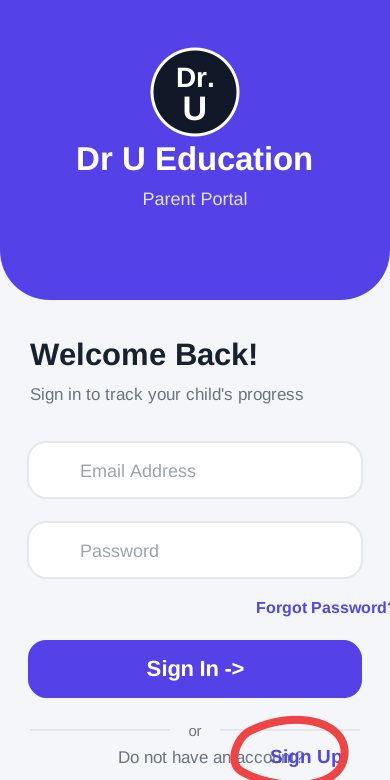
Tap Sign Up
Open the Parent App. On the first screen, tap Sign Up at the bottom.
Do not type anything on this screen unless you already made an account before.
Step 2
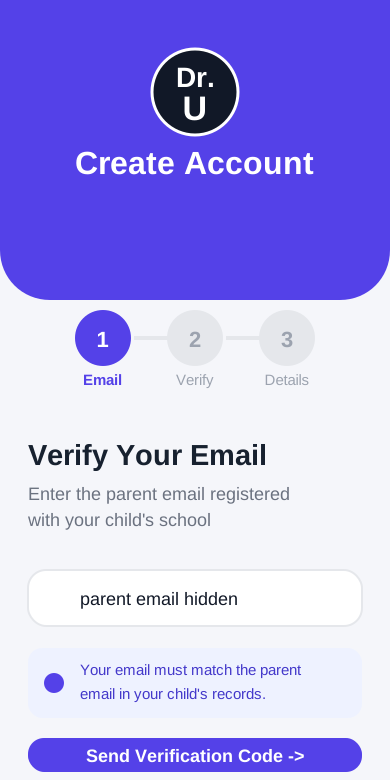
Type your parent email
Use the same parent email you gave Dr U Education when your child enrolled.
If you use a different email, the app will not find your child.
Step 3
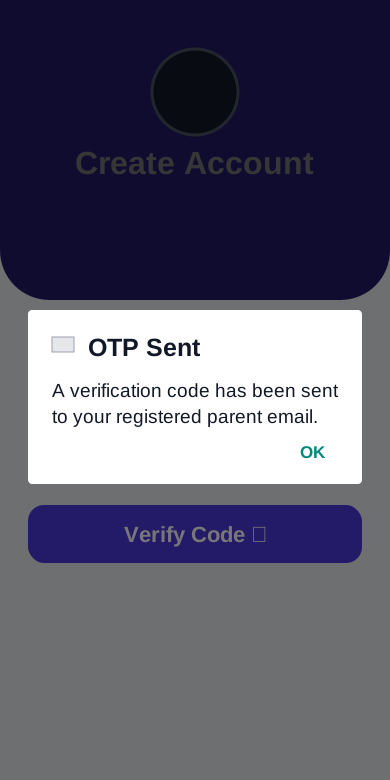
Send the code
Tap Send Verification Code. Then check your email inbox for the code.
If you do not see it, check Junk or Spam.
Step 4
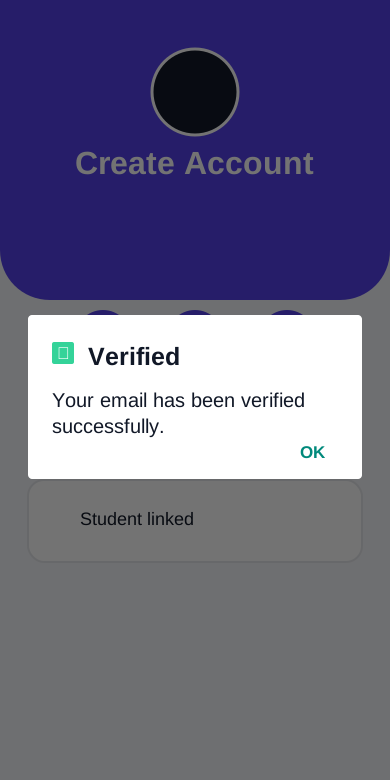
Enter the code
Type the code from your email into the app. Then tap Verify Code.
When it works, the app will show a Verified message.
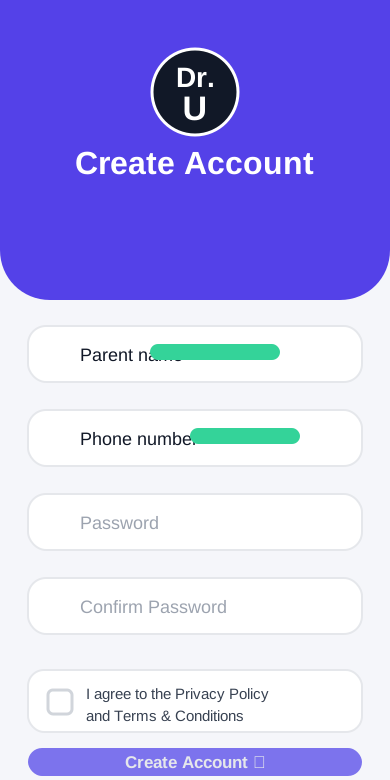
Step 5
Finish your account
Check your details, make a password, tick the agreement box, and tap Create Account.
After that, sign in with your email and new password.
Frequently asked questions
Who can use the parent app?
A parent or guardian can use it after their child is enrolled and the required parent portal access is paid.
How do I know when my access is ready?
We send you an email with the app links and setup guide when your access is ready.
Can I link multiple children?
Yes. If more than one student is enrolled under your parent email, all of them will appear in the app automatically when you create your account.
What if I forget my password?
Use the Forgot Password link on the login screen. A reset link will be sent to your registered email address.
Is the app available on both iPhone and Android?
Yes. Download it from the App Store on iPhone/iPad or from Google Play on Android.
I enrolled but have not received a setup email — what should I do?
First check Junk or Spam. If you still cannot find it, contact the centre and we will help.
Ready to get started?
Enrol your child today. When your Parent App access is ready, we will email you the setup details.
Enrol Now
Dr. U Education
AI Assistant
Hello! I'm Dr. U's AI assistant. How can I help you with information about our courses, schedules, or institute?
7:44 PM